


What is an origin stack?
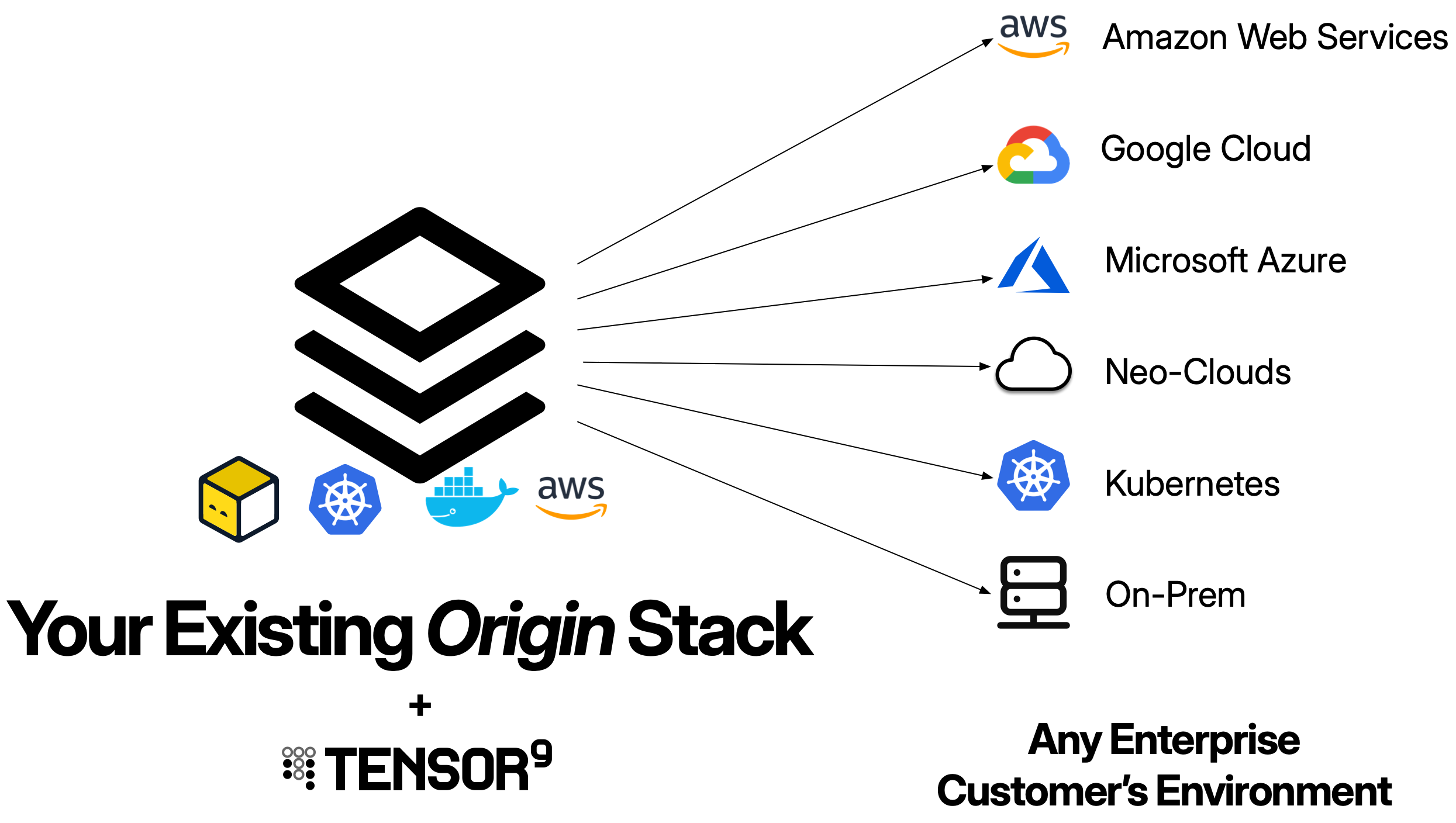
Your origin stack is the source of truth for your application’s infrastructure and configuration. It contains all the resources, dependencies, and settings needed to run your application. When you publish an origin stack to Tensor9, your control plane uses it as the template to generate deployment stacks tailored to each customer’s specific environment and form factor. Think of your origin stack as the infrastructure-as-code you already use to deploy your SaaS application. It defines everything from compute resources (like Lambda functions, containers, or VMs) to databases, storage buckets, networking configuration, IAM roles, and any other cloud resources your application needs. Tensor9 takes this single origin stack and uses it as a template to generate customized deployments for each customer appliance, adapting the infrastructure to match each customer’s target environment.Tensor9 uses your existing origin stack as-is. You don’t need to define a new origin stack specifically for Tensor9 deployment - simply publish the same Terraform, Docker Container, Docker Compose, or CloudFormation code you already use to deploy your SaaS product.
Example: A Terraform/OpenTofu origin stack
Consider a typical SaaS application with an API, database, and storage. Your origin stack might look like this:- For customer A on AWS: Tensor9 generates a deployment stack that creates these same resources in Customer A’s AWS account`
- For customer B on Google Cloud: Tensor9 translates the resources (RDS becomes Cloud SQL, S3 becomes Cloud Storage, Lambda becomes Cloud Functions) and generates a deployment stack for Customer B’s Google Cloud account
- For customer C private: Tensor9 translates the resources to use private equivalents (e.g., RDS becomes CloudNativePG, S3 becomes MinIO) and generates a deployment stack for Customer C’s private environment
- For a test appliance D: Tensor9 generates a deployment stack that creates these resources in that test appliance in your Tensor9 AWS account`
The origin stack remains unchanged - you maintain a single source of truth while Tensor9 handles the complexity of deploying to multiple customers across different form factors.
Supported stack types
Tensor9 supports multiple infrastructure-as-code and container formats as origin stacks:| Stack Type | Example |
|---|---|
| Terraform/OpenTofu | s3://my-bucket/my-tf-workspace.tf.tgz |
| Docker Container | 123456789012.dkr.ecr.us-west-2.amazonaws.com/my-app:latest |
| Docker Compose | s3://t9-ctrl-000001/my-app-compose.yml |
| CloudFormation | arn:aws:cloudformation:us-west-2:123456789012:stack/my-app-stack/a1b2c3d4 |
| Kubernetes | Manifest or Helm chart embedded in an origin stack of a different type |
How origin stacks work
When you create a release for an appliance, Tensor9 performs a compilation process that transforms your origin stack into a deployment stack:- Validation: Your control plane inspects the origin stack to ensure it’s well-formed and meets Tensor9 requirements
- Porting: Resources are translated to their equivalents in the target customer’s environment based on the appliance’s form factor
- Observability: The stack is instrumented to route logs, metrics, and traces back to your observability sink
- Packaging: The result is a deployment stack - a self-contained artifact you deploy using standard tooling
Publishing origin stacks
To make your origin stack available to Tensor9, you publish it to your control plane. The publishing process depends on the stack type:Publishing a Terraform origin stack
- Compresses your Terraform workspace into a
.tf.tgzarchive - Uploads it to your control plane’s S3 bucket
- Returns a native stack id you’ll use to bind the origin stack to your app
s3://t9-ctrl-000001/terraform-stacks/origins/my-stack.tf.tgz
Pass this native stack id into the tensor9 stack bind command to bind this Terraform origin stack to your app.
Publishing a Docker container origin stack
For Docker containers, you push your container image to your Tensor9 AWS account’s Elastic Container Registry (ECR):<ACCOUNT>.dkr.ecr.<REGION>.amazonaws.com/my-app:latest
Pass this native stack id into the tensor9 stack bind command to bind this Docker container origin stack to your app.
Publishing a Docker Compose origin stack
For Docker Compose applications, you publish your docker-compose.yml file to your control plane:- Uploads your docker-compose.yml file to your control plane’s S3 bucket
- Returns a native stack id you’ll use to bind the origin stack to your app
s3://t9-ctrl-000001/my-app-compose.yml
Pass this native stack id into the tensor9 stack bind command to bind this Docker Compose origin stack to your app.
When you create a release, Tensor9 compiles your docker-compose.yml file into a complete Terraform deployment stack with Kubernetes resources. Services with exposed ports get LoadBalancer services, while internal services use ClusterIP. All container images are automatically copied to the appliance’s container registry.
Using a CloudFormation origin stack
For CloudFormation stacks, you manage and deploy your stack using the AWS CLI, nottensor9 stack publish. Tensor9 references your existing CloudFormation stack and uses its template as your origin stack.
First, deploy your CloudFormation stack using the AWS CLI:
arn:aws:cloudformation:us-west-2:123456789012:stack/my-app-stack/a1b2c3d4
You’ll use this ARN to bind the CloudFormation origin stack to your app. Tensor9 will use the template from this stack as the blueprint for generating deployment stacks.
Binding an origin stack to an app
After the first time you publish an origin stack, you must bind it to your app. Binding registers the stack with your app so you can create releases:Multiple origin stacks per app
Some applications consist of multiple independently deployable components. You can bind multiple origin stacks to a single app:Origin stack requirements
To work with Tensor9, your origin stack must meet certain requirements:Terraform/OpenTofu requirements
- Valid Terraform: Your configuration must be valid and pass
tofu validate - Backend Configuration: You can optionally include backend configuration in your origin stack. Tensor9 preserves any backend configuration you provide, giving you control over state management. See Backend Configuration for details.
- Root Module Location: If your root module is in a subdirectory within the archive, specify the path using
//notation:s3://your-bucket/your-tf-workspace.tf.tgz- root module at archive roots3://your-bucket/your-tf-workspace.tf.tgz//infrastructure/terraform- root module ininfrastructure/terraform/subdirectory
- Instance ID Variable: Your stack should accept an
instance_idvariable that Tensor9 injects to uniquely identify each appliance:
Docker container requirements
- Platform Support: Containers must support the
linux/amd64architecture - Registry Access: Images must be accessible from your Tensor9 AWS account’s ECR
- Stateless Design: Follow container best practices for stateless, immutable deployments
Docker Compose requirements
- Valid Compose File: Your docker-compose.yml must be valid (v2.x or v3.x format)
- Container Images in Registries: All images referenced in your compose file must be pushed to container registries before creating a release
- Named Volumes Only: Use named volumes for persistent storage (bind mounts are not supported)
- External Secrets: Secrets must be defined as
external: trueand pre-created in the appliance namespace - No Build Directive: The
build:directive is not supported - all services must reference pre-built images
CloudFormation requirements
- Valid Template: Your CloudFormation template must be valid and deployable
- Deployed in Tensor9 AWS Account: The CloudFormation stack must be deployed in your Tensor9 AWS account
- Parameterized Resources: Use Parameters to make resource names unique per appliance (similar to
instance_idin Terraform) - No Nested Stacks: Nested CloudFormation stacks are not supported
Updating origin stacks
When you need to release changes to your application, publish a new version of your origin stack:- Make Changes: Update your infrastructure code or container image
- Publish: Run
tensor9 stack publish(for Terraform) or push a new container image - Release: Create a release targeting the appliances you want to update
Best practices
Origin stacks must be parameterized
Origin stacks must be parameterized
Your origin stack must be designed to support multiple independent deployments without resource name collisions. This is called “parameterization” - making your infrastructure unique per appliance instance.When you deploy the same origin stack to multiple customer appliances, each deployment must create its own isolated copy of every resource. Without parameterization, multiple deployments would attempt to create resources with identical names, causing conflicts and failures.Tensor9 automatically injects an What needs to be parameterized:
instance_id variable into every deployment. You must use this variable to make all resource identifiers unique:- Resource names and identifiers (S3 buckets, databases, Lambda functions, etc.)
- Secret paths in external secret stores
- Log group names
- IAM role and policy names
- Any other globally unique identifiers
Testing
Testing
Always test new origin stack versions in test appliances before releasing to customer appliances:
- Publish the new origin stack
- Create a release to a test appliance
- Deploy and validate the release against the test appliance
- Create a new release for customer appliances
- Deploy the release to customer appliances
Next steps
Now that you understand origin stacks, explore these related topics:- Appliances: Where your origin stack gets deployed
- Deployments: How to release your origin stack to appliances
- Control Plane: How Tensor9 compiles and manages your origin stacks
- Quick Start: Terraform: Step-by-step guide for Terraform origin stacks
- Quick Start: Docker Compose: Step-by-step guide for Docker Compose origin stacks