


tensor9 CLI and use it to create a Tensor9 control plane in a dedicated AWS account you own.
Prerequisites
Before you can use Tensor9, you need to ensure your environment meets the following requirements:- Tensor9 API Key: You must have an API key to use the
tensor9CLI. If you don’t have one, please send an email to [email protected] to request one. - A dedicated AWS account: This account should be used exclusively for Tensor9 to avoid conflicts with other resources.
- Java: Install Java 17+.
Install the Tensor9 CLI
Run the following command in your terminal to download and install thetensor9 CLI:
Configure your Tensor9 API key
After installing thetensor9 CLI, you need to configure your Tensor9 API key as an environment variable. This allows the CLI to authenticate with the Tensor9 control plane.
<YOUR_API_KEY> with the key you received from Tensor9. We recommend you add this line to your shell’s profile file (e.g., ~/.zshrc, ~/.bash_profile) to make the key available in all your terminal sessions.
Set up your Tensor9 control plane
Your Tensor9 control plane is the engine that manages your customer appliances. It consists of a set of resources that are provisioned directly into your own dedicated Tensor9 AWS account. Your control plane is responsible for:- Managing your origin stacks.
- Creating and managing appliances.
- Performing deployments to appliances.
- Synchronizing telemetry from appliances back to your observability sink.
- Creating operations endpoints so that you can remotely operate appliances.
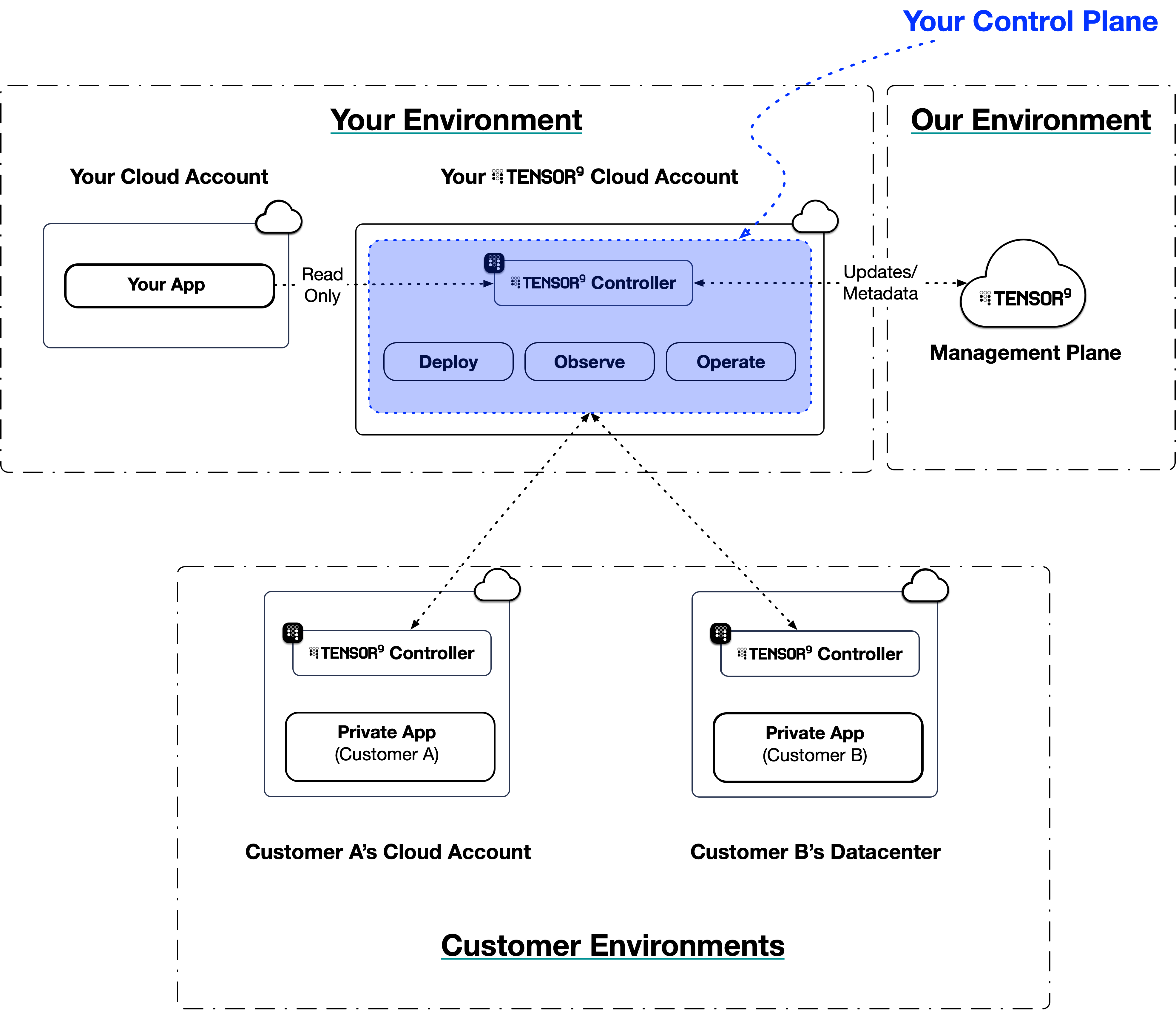
<YOUR-REGION> with the AWS region you are using and <YOUR_AWS_CLI_PROFILE> with the name of your configured AWS CLI profile.
Verify your control plane
Once the setup command completes, you can verify that your control plane is up and running by using thetensor9 report command. This command provides a summary of your Tensor9 control plane, including its health status.
Next steps
Now that your control plane is installed and running, explore these topics to start using Tensor9:- Quick Start: Terraform: Deploy your first application using Terraform
- How Tensor9 Works: Understand the deployment workflow
- Origin Stacks: Learn how to define your application infrastructure
- Key Concepts: Understand the core terminology and concepts