The Savings You Found But Can’t Capture

Share this:
Companies will spend more than $1 trillion on public cloud this year, according to IDC, and a large share of it is promised in advance. To get a discount, companies commit to spending a set amount with a cloud provider over several years, and they often hold commitments with more than one. Snap’s public filings, for example, show it committed to at least $400 million a year on Google Cloud and $1.1 billion over six years on AWS at the same time. In any year it spent less than the minimum, it owed the difference.
Those commitments rarely match what gets used. Redress Compliance, which reviews these contracts, found that the shortfall companies owed when usage didn’t keep pace typically came to 10 to 20 percent of the commitment. Flexera’s 2026 State of the Cloud report put wasted cloud spend at 29 percent, the first increase in five years, and pointed to AI workloads as the reason.
The way to use money you’ve already committed is to run more on that cloud. Your FinOps team has probably found a workload that would cost less there. More and more often it’s one that runs AI models, which most FinOps teams now manage as a cost of its own.
When you asked the platform team about moving it, they estimated more than a year of work: rewriting the code for the new cloud’s services, setting up and testing a second deployment, running both during the cutover, and adding on-call for the new one. That work would cost more than the move saves.
Until now, moving a workload built on one cloud’s services meant rewriting the code that calls them. Kubernetes makes the compute portable, but the storage, queues, databases and AI services that the code calls still belong to one cloud.
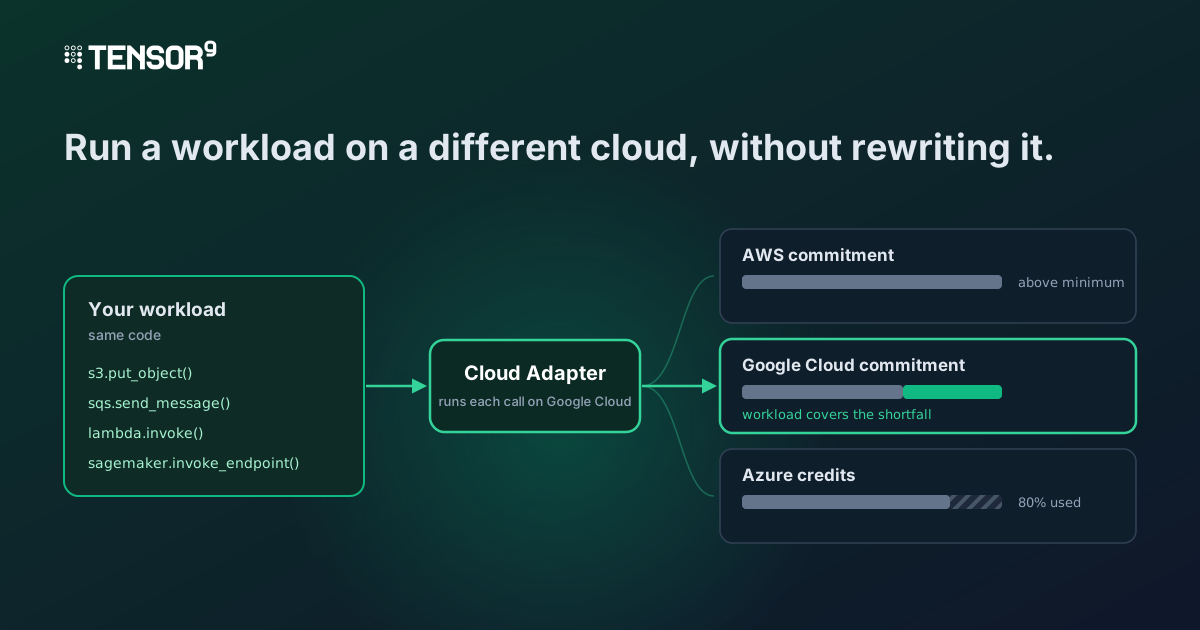
Tensor9 built Cloud Adapter so the workload can run on another cloud without rewriting its code, whether it runs on Kubernetes or not. The code keeps making the calls it makes today, and Cloud Adapter carries out each one on the new cloud’s own services, such as its storage, queues and databases. Because the code doesn’t change, you can also move the workload again later when your commitments, credits or prices change.
Tensor9 started out helping software companies run their products inside their customers’ clouds. Cloud Adapter is for any company with workloads in the cloud, including the internal systems that run finance, operations and the supply chain. The example in this post is one of those: a workload that processes supplier files overnight, moving from AWS to Google Cloud.
The workload: processing supplier files overnight
Picture a company whose suppliers send a file at the end of each day, such as a spreadsheet of everything they shipped. Overnight, the workload reads each file, runs an AI model over every record to pull out the details and flag anything that looks wrong, and saves the results to a database, so they’re ready for reports in the morning. The original files are kept as an archive.
On AWS, it uses these services:
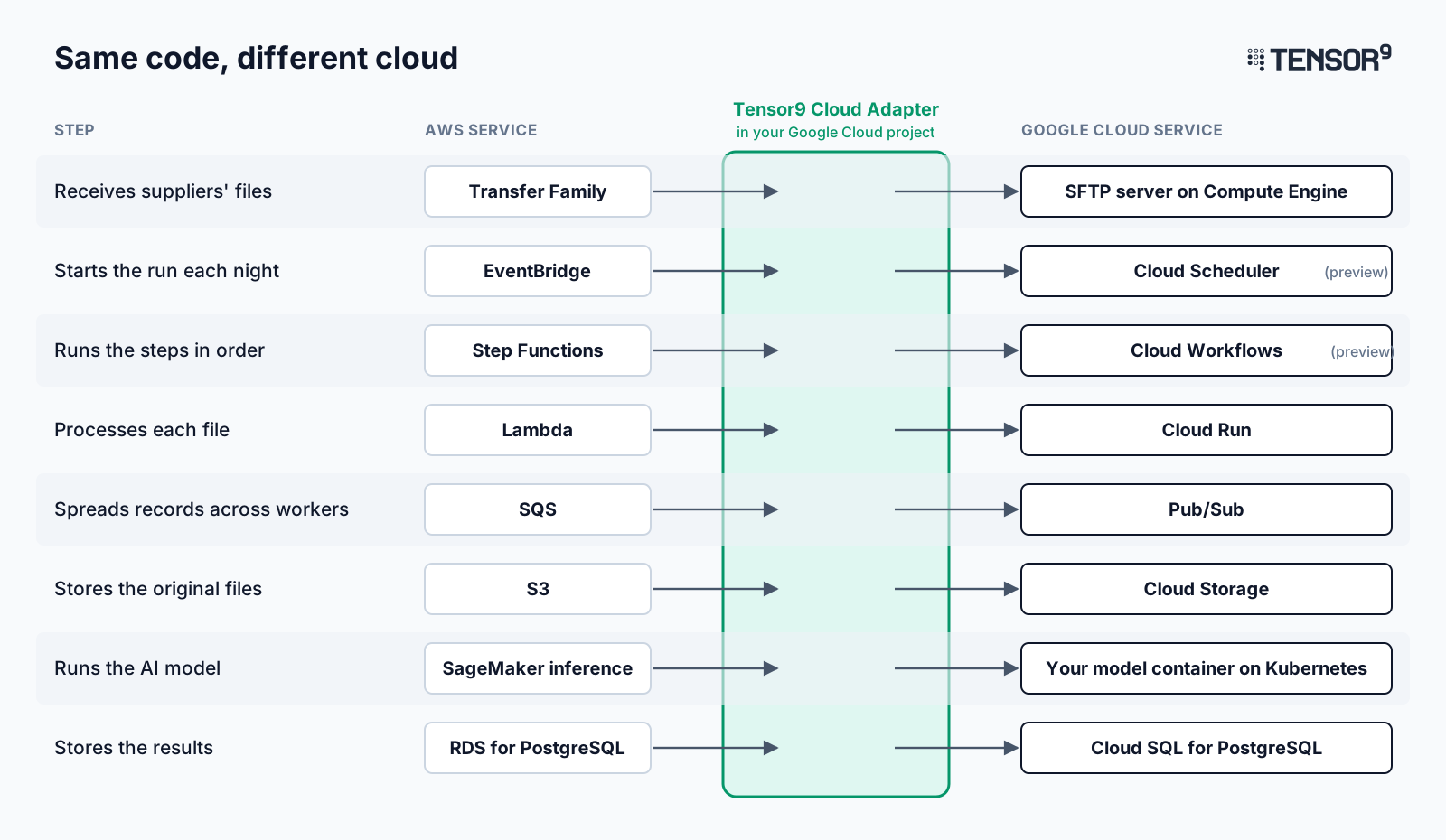
- A secure upload point for suppliers’ files (AWS Transfer Family)
- A timer that starts the run each night (EventBridge)
- A workflow that runs the steps in order (Step Functions)
- Small programs that process each file (Lambda)
- A queue that spreads the records across workers (SQS)
- Storage for the original files (S3)
- An AI model that reads each record and pulls out the details (SageMaker inference)
- A database for the results (RDS for PostgreSQL)
The company is on track to fall short of its Google Cloud commitment, so that’s where it wants this workload to run.
What changes when you move it with Cloud Adapter
The expensive part of moving this workload is the code that talks to each cloud service. It saves files by calling S3, hands records to workers by calling SQS, runs the model by calling SageMaker, and so on. Google Cloud has a service for each of these tasks, but each one has a different API, so those calls don’t work there until someone rewrites them.
Cloud Adapter is what lets you skip that rewrite. It runs in your own account on the target cloud and accepts the calls your code was written to make. It carries out each supported call on the target cloud’s own service and answers in the format your code expects, so the code and the tools your team uses keep working as they are.
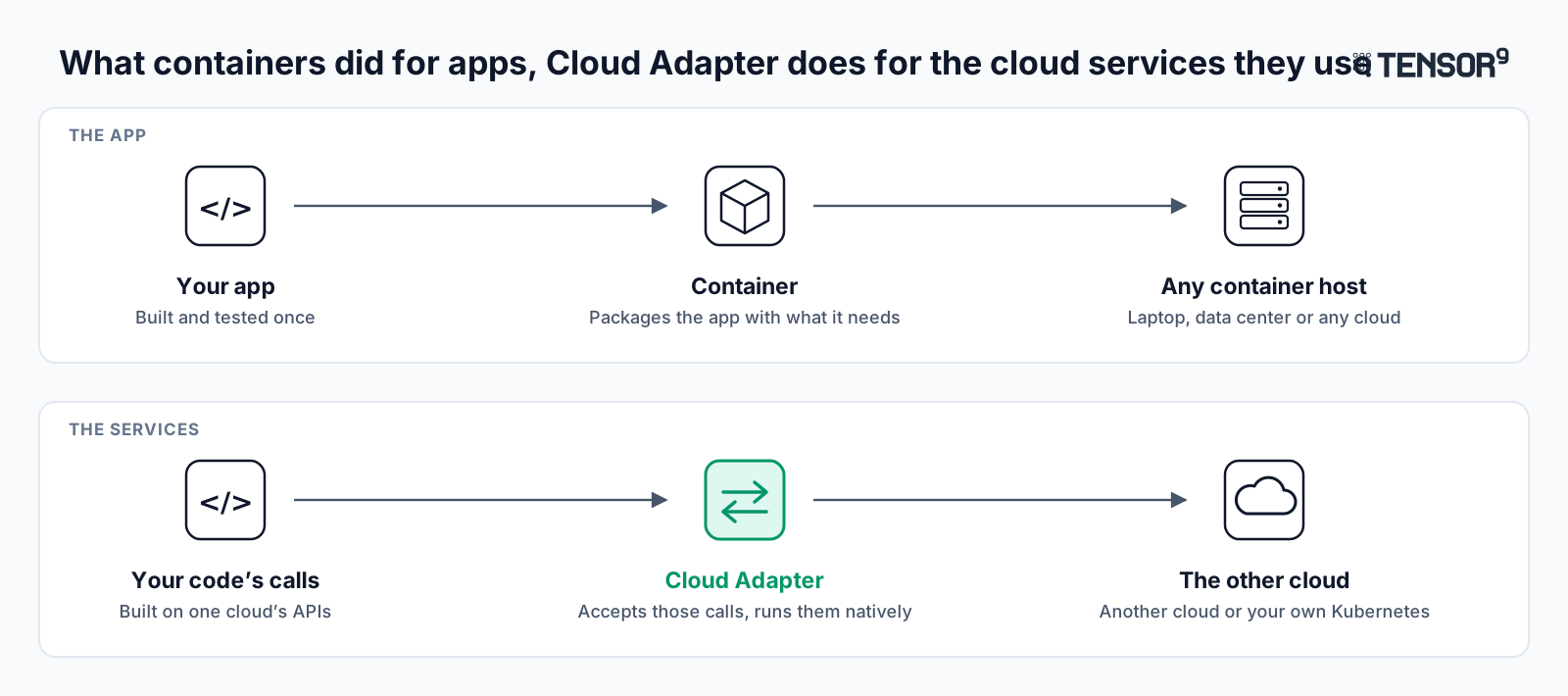
In this example the workload was built for AWS and moves to Google Cloud, because that’s where the company’s commitment is, so Cloud Adapter runs in your Google Cloud project. You can make it reachable over HTTPS or only from your private network.
Your platform team doesn’t rewrite the code. They change a setting for each service so the code and the infrastructure configuration send their AWS calls to Cloud Adapter, then run their usual infrastructure deployment, which creates the matching Google Cloud resources. Access permissions are mapped to Google Cloud too, so the new deployment doesn’t depend on anything in AWS.
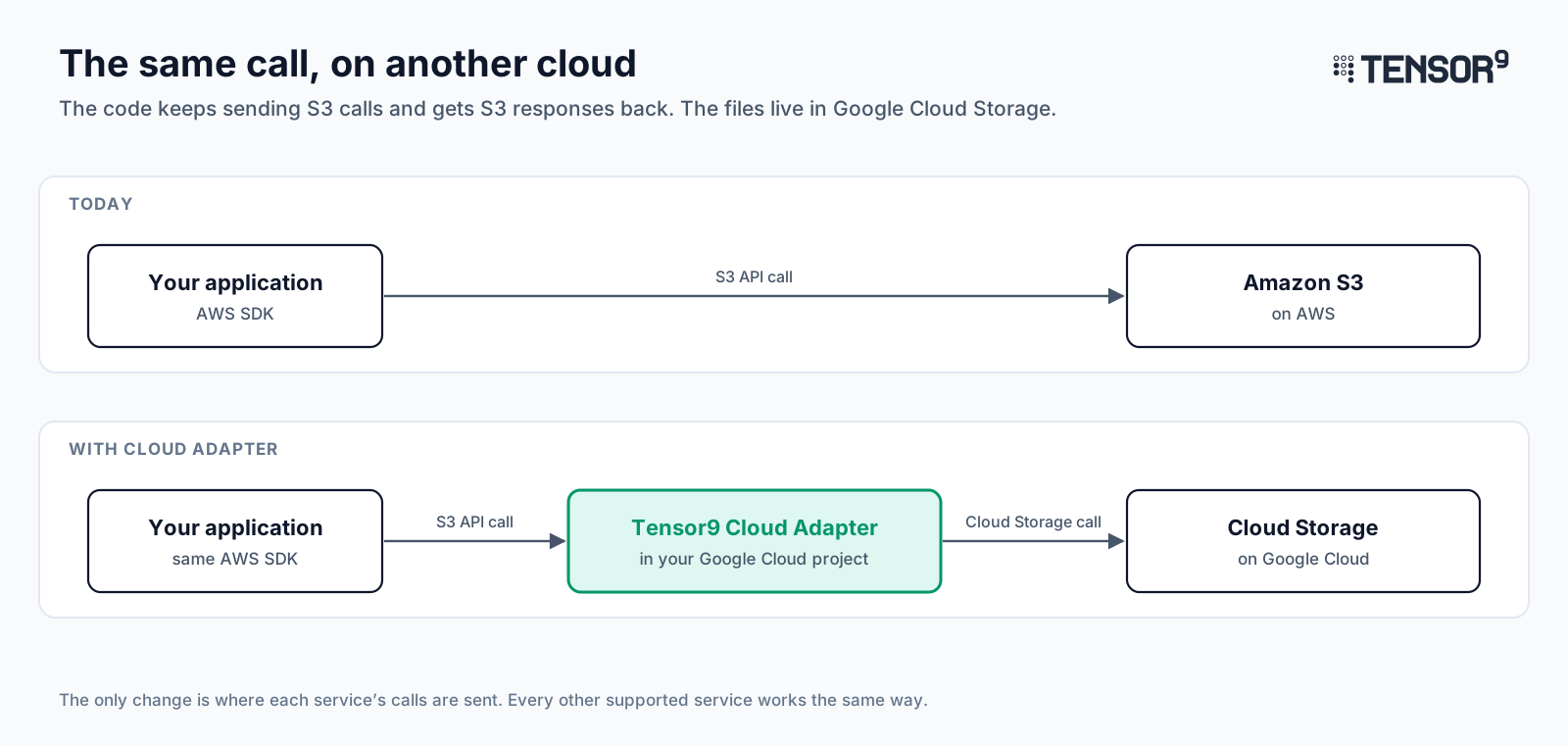
How much of the workload’s traffic passes through Cloud Adapter depends on the service. The code’s Postgres driver connects to a Cloud Adapter proxy in front of Cloud SQL for PostgreSQL, which checks each login and passes the queries through unchanged. Cloud Adapter also handles the RDS API calls your tooling makes for snapshots, restores and failover. The S3 calls go through Cloud Adapter, which stores the files in Cloud Storage and returns the responses the S3 SDK expects. Queue messages go to Pub/Sub and function invocations to Cloud Run, both through Cloud Adapter. Calls to the model go through Cloud Adapter to the same model container, which runs on Kubernetes in your Google Cloud project.
Where the savings come from
Cost tools are good at finding savings inside the cloud you already use. They break the bill down by team and workload, manage reserved capacity and savings plans, and rightsize servers and clusters. Running a workload on another cloud saves money in two ways:
- Money you’ve already committed. Many companies sign a committed-spend agreement with a cloud in exchange for a discount, and if their usage falls short, they pay the difference anyway. Credits from migration programs and partner deals are similar: they’re already yours, but only until they expire. A workload moved onto that cloud uses that money instead of leaving it unspent. This is usually the larger saving, and it lasts only until the agreement renews or the credits run out.
- A lower price to run it. Compute, managed databases and data transfer are priced differently on each cloud, and so are the discounts you’ve negotiated with each. The gaps can be wide for compute-heavy work such as running AI models. This saving lasts as long as the workload runs there.
The example in this post has both. Being able to run a workload on more than one cloud also gives you a real choice each time a contract comes up for renewal.
Working out what you’d save
Your cost tool tells you what the workload costs and uses today. Your contracts with each cloud tell you the discounts, commitments and credits that change what it would cost after the move. You don’t have to do this by hand. FinOps platforms handle the first two steps below. Commitment-management services track how much room you have above a minimum and when reserved capacity ends, which is step 4. For step 3, the destination cloud’s migration tools can price the workload from your current bill, and your account team can supply your negotiated rates.
For this workload, with illustrative figures, the steps look like this:
- Isolate the workload’s cost. Use your cost tool’s tags or allocation rules to get what the workload costs each month, by service. If it shares a database or cluster with other systems, split that cost by usage. In this example, that’s $80,000 a month on AWS, most of it for the servers that run the model.
- Measure what it uses. Pull the usage behind the cost: compute hours, storage, requests, database size and data transferred. The other cloud’s prices apply to that usage, not to your current bill.
- Price that usage on the other cloud at your rates. Use the discount you’ve negotiated and any commitment discount you’d buy, not list prices. If the other cloud has more than one service that could do the same work, price each one. In this example, it would cost $67,000 a month on Google Cloud, about $800,000 a year, and most of the difference is in the compute that runs the model.
- Check commitments on both clouds. This step can erase the saving. If your agreement with your current cloud, such as an AWS Enterprise Discount Program, sets a minimum spend, moving the workload off lowers your spend there, and falling below the minimum means paying the difference. Check how much room you have above it. Reserved capacity and savings plans keep billing until they end, so time the move to their end date. On the destination cloud, spend that fills a shortfall or uses credits costs nothing extra.
- Add data transfer. Data leaving a cloud is billed by the gigabyte. A workload that keeps calling services that stay behind can run up charges larger than the saving, so move it with the services it talks to most, or choose one with few connections. This one is mostly self-contained: the only data crossing clouds each day is the morning reports.
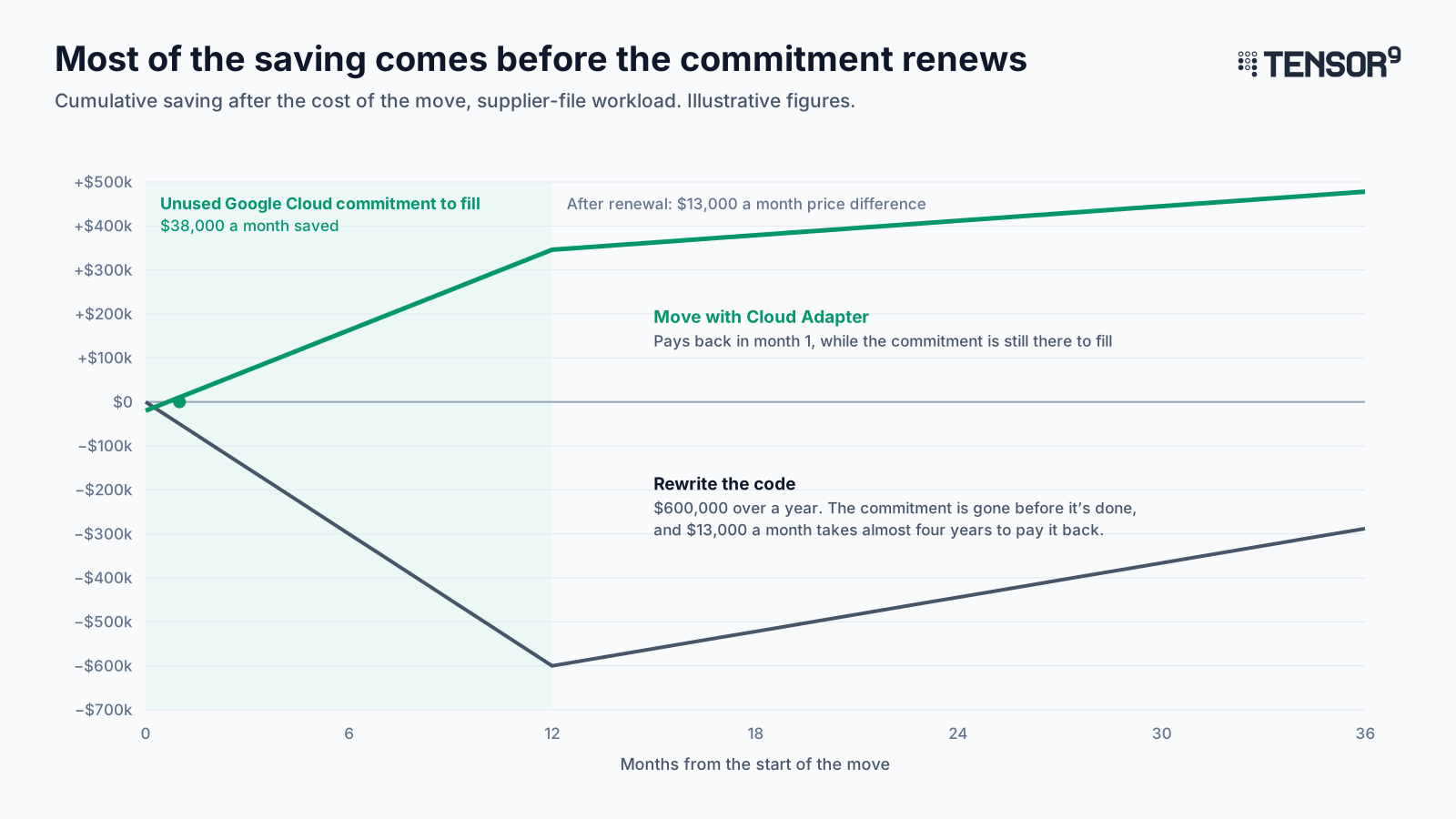
The company expects to fall $25,000 a month short of its Google Cloud commitment. Moving the workload saves $13,000 a month on price and puts that $25,000 of committed spend to use, so the move saves $38,000 a month while the shortfall lasts, about $450,000 over the remaining year of the commitment. Once the commitment renews at a size that fits, the ongoing saving is the $13,000 a month price difference. The company’s AWS spend runs about $150,000 a month above the minimum in its AWS agreement, so moving $80,000 a month off it doesn’t leave a shortfall there. Without that room, the move would make sense only once the AWS agreement renews at a smaller size. The workload’s compute on AWS is covered by a savings plan that ends in March, and that’s when the move starts saving money.
Working out whether it pays back
Your tools can find the saving, but until now, capturing it meant a rewrite.
The payback period is the one-time cost of the move divided by the monthly saving. In this example, the move saves $38,000 a month. If the move takes three engineers a year, it costs about $600,000, and by the time it’s done, the year of unused commitment it was meant to fill is mostly gone. After that the saving is $13,000 a month, which takes almost four years to repay $600,000, and you maintain a second stack the whole time.
With Cloud Adapter, the one-time cost is setup, a week of paying for both versions, and moving the existing database and archived files. The ongoing cost is Cloud Adapter’s subscription plus running the workload on Google Cloud, which you’d pay after any move. Because the move takes days or a few weeks, it starts saving while the unused commitment is still there to fill.
Running a pilot you can roll back
Leave the AWS version running and deploy the Google Cloud version next to it. Run both for a week on the same supplier files and compare the rows each one writes to Postgres.
Tensor9 Explain, a log of what Cloud Adapter did with each request, shows the Google Cloud calls it made, so your team can trace any difference. It can also show what a request would do without running it. Your cost tool shows the workload on both bills that week, so you can check the saving against your estimate before you switch. When they match, point the suppliers’ uploads at the new location, and if something goes wrong later, point them back.
Because the code still makes the same calls, you can move it again the same way when the credits run out or the contract comes up for renewal. Your team owns the new deployment and its on-call, as it would after any move. Google Cloud runs the native services, and Tensor9 supports Cloud Adapter itself.
What to plan for
- Historical data. Cloud Adapter stands up the workload on the target cloud. Data already in your database and the files already archived in storage need their own move, by dump and restore, replication or a bulk copy, and your team plans that step.
- Coverage. Support is specific to each service, operation and target cloud. Some services aren’t covered yet, so check the service catalog for each service your workload uses before you plan the move.
- Depending on Tensor9. Cloud Adapter runs in your Google Cloud project, so you control where it runs and what it can reach, and you monitor it like any other service your workload depends on. The resources and data are native to Google Cloud. Your code still makes AWS calls, so if you stop using Cloud Adapter, you point the workload back at AWS or rewrite it then, on your own schedule.
- Direction. This example moves a workload from AWS to Google Cloud, and the same approach works between other clouds, such as from Azure or Google Cloud to AWS. The service catalog lists the origin and target clouds supported today.
- Poor fits. Workloads that exchange large amounts of data with systems that stay behind, paths where every millisecond of latency counts, and workloads built on services the catalog doesn’t cover yet are better left where they are for now. AI models that need GPUs or stream their responses aren’t covered yet. Models you reach through a model provider’s own API are billed by that provider, so moving the workload doesn’t change what you pay for them.
Try it on your workload
Cloud Adapter is in early access. Get early access to Cloud Adapter and tell us which workload you’re considering. We’ll check its services against the catalog, send back what would move and what wouldn’t, and then work out the saving with you. If a partner or your cloud’s migration program is already handling the move, bring them in, since Cloud Adapter shortens the work they’d do.